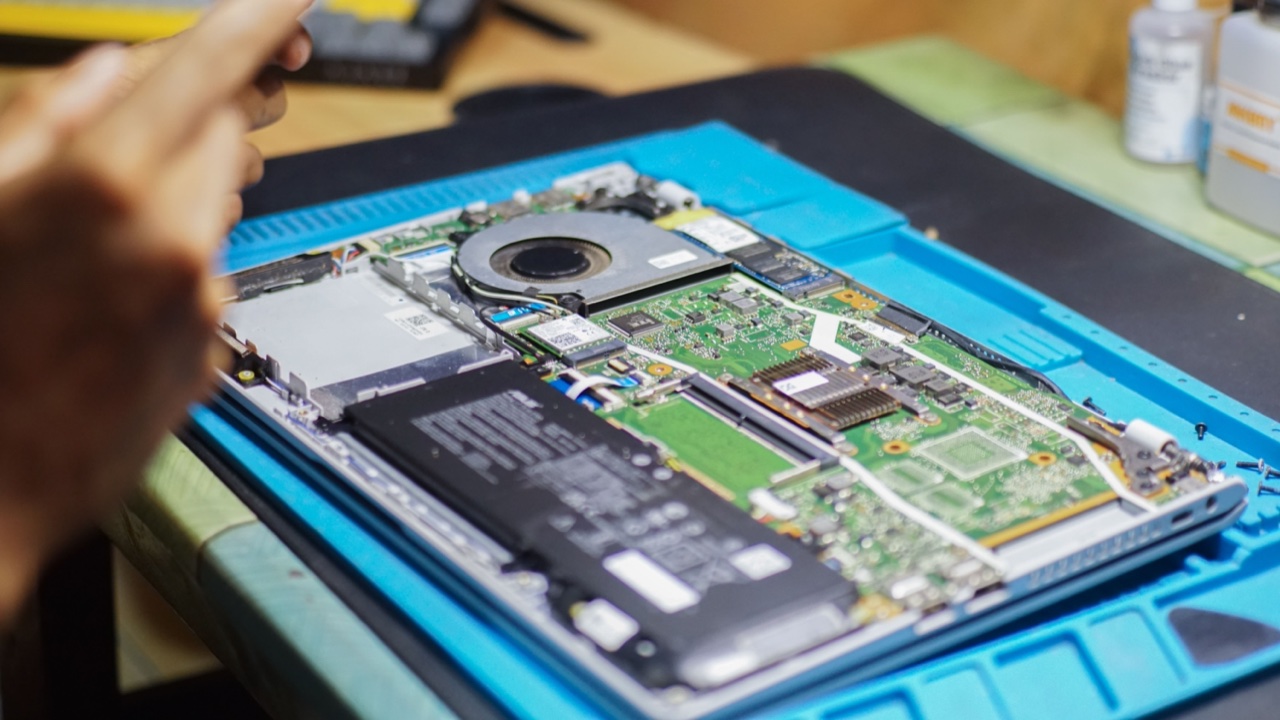
A laptop that won’t hold a charge or shuts down unexpectedly gets blamed on the battery almost automatically. Sometimes that’s right. But I’ve seen people spend money on a replacement battery when what they actually had was a software problem, a failing charger, or a thermal issue that was making the system shut down protectively. And I’ve seen people get a new charger when the battery was the real culprit.
Knowing which one it actually is before you replace anything saves you from running that experiment twice. Here’s how to work through it systematically.
Start With the Charger, Not the Battery
Before you conclude the battery is dying, rule out the charger. This is the part that gets skipped most often because the charger looks fine — no fraying, the light comes on, it’s warm when plugged in. None of that confirms it’s delivering consistent power.
A charger that’s failing intermittently can cause exactly the symptoms people attribute to a dead battery: the laptop works fine while plugged in, but the reported battery percentage jumps around, or the machine shuts down unexpectedly even when it shows 30% charge. The battery isn’t reporting the charge state correctly because the power input is inconsistent.
The easiest test: if you have access to another charger that works with your model, swap it in and see if the behavior changes. If the problem disappears or noticeably improves, the charger was the issue. If nothing changes, you’ve narrowed it to something else.
Also check the charging port on the laptop itself. If the cable has to be held at a specific angle to charge, or if charging is intermittent depending on how the cable sits, the port may be loose or damaged — a hardware problem that replacing the battery won’t fix.
Check What Your System Actually Reports
Your operating system has battery health information built in, and it’s more useful than how the machine feels in use.
On Windows, open Command Prompt or PowerShell and run powercfg /batteryreport. This generates an HTML file with the battery’s design capacity versus current full-charge capacity, the history of charge cycles, and any errors the system has logged. The number to look at first is the ratio between design capacity and current full-charge capacity — a battery at 80% of its original capacity is aging but still functional; one at 40% is significantly degraded and explains a lot of runtime complaints.
On Mac, hold Option and click the battery icon in the menu bar. “Service Battery” is the system’s own conclusion that the battery needs replacement. “Normal” means the battery health check hasn’t flagged a problem. You can also go to System Information > Power and see cycle count versus the rated cycle life for your model.
If the system reports the battery as healthy with most of its original capacity, the runtime issues you’re experiencing are probably not a failing battery — they’re more likely software-related.
Distinguish Battery Death From Software Drain
A laptop that drains quickly isn’t necessarily running on a degraded battery. It might be running a process that’s consuming more power than it should.
Open your task manager or activity monitor and sort by CPU usage while the machine is on battery. A process sitting at 30-50% CPU continuously — a browser tab running a poorly optimized page, a background sync service, antivirus doing a full scan — will drain a healthy battery in two hours when the same machine would normally run for five. The battery isn’t the problem.
The specific symptom that points toward a genuine battery issue rather than software drain is sudden shutdown. If the machine runs fine, the percentage drops normally, and then at some point — often around 20-30% — it shuts off abruptly without warning rather than warning you that charge is low, the battery cells are probably failing. Failing lithium cells lose the ability to deliver consistent current under load at lower charge states. The system reads the voltage drop as a sudden collapse to zero and shuts down.
Gradual drain that just seems faster than it used to be is less diagnostic on its own — it could be the battery, but it could also be accumulated startup items, a new application, or a system update that changed background behavior.
The Swelling Test
Physically inspect the battery if your laptop design allows it. A swollen battery is unambiguous — it’s a definite failure and needs to be replaced regardless of what any diagnostic says. You can often detect swelling before you open the machine: if the laptop wobbles on a flat surface when it used to sit flat, if the trackpad feels raised or stiff, or if the bottom of the machine has a visible bulge, the battery is likely expanding inside.
Swollen lithium batteries can be a safety issue if left in the machine. Don’t puncture or compress them, and replace them promptly. This is one of the few battery situations where you shouldn’t wait for software confirmation — the physical evidence is enough.
When to Conclude It’s the Battery
After working through the above, the case for battery replacement is strongest when:
The system’s own health report shows significantly reduced capacity (below 70-75% of design capacity), or the battery has exceeded its rated cycle count by a meaningful margin. The machine shuts down suddenly at moderate charge levels, particularly under load, rather than giving a low-battery warning. The charger has been verified as working and the port is solid. Background processes aren’t running anything unusual.
If you’ve confirmed it’s the battery, the replacement question becomes which battery to use. Genuine OEM replacements are the most reliable option for most people. For a reliable source of ノート パソコン バッテリー compatible with a wide range of models, it’s worth comparing what’s available before committing — compatibility by model number matters more than brand, and the capacity spec should match or exceed the original.
What Replacement Won’t Fix
A new battery won’t fix a thermal shutoff. If your laptop runs hot and shuts down under load even when plugged in, the problem is probably a clogged fan, degraded thermal paste, or inadequate cooling — not the battery. Replace the battery in this situation and the new one will just get the same shutdowns.
A new battery also won’t fix driver or firmware issues that cause incorrect charge reporting. If Windows or macOS has a bug that’s misreading the battery state, the symptom looks like battery failure but the hardware is fine. Checking for OS and firmware updates before replacing the battery is worth a few minutes.
The diagnostic work takes longer than just ordering a replacement. But it’s the difference between solving the problem and discovering you still have it after spending money on a part you didn’t need.